
Blocs has quietly become the website builder of choice for Mac users who want full creative control without writing code — and without renting their website from a subscription platform. It's a native Mac app, it exports clean, fast static HTML, and once you understand its building blocks, you can put together a professional site in a day.
This guide walks you through the whole journey: planning your site, understanding how Blocs thinks, building your pages, and getting everything live. If you're brand new to Blocs, read it top to bottom. If you've already poked around the app, jump to the section you need.
Step 1: Plan before you open the app
The fastest websites to build are the ones you've already sketched. Before you touch Blocs, answer three questions:
- What is the one thing a visitor should do? Book a call, buy a product, see your work, join a list. Every page should funnel toward it.
- What pages do you actually need? Most small sites need surprisingly few: a homepage, an about page, a contact page, and one or two pages for what you offer. Start there — you can always grow.
- What content exists already? Gather your logo, photos, and copy into one folder. Half of "building a website" is really content wrangling, and doing it up front keeps you in flow later.
Step 2: Understand how Blocs thinks
Blocs gets its name from its core concept: pages are stacked from pre-designed sections called blocs. Inside each bloc you'll find rows and columns, and inside those live brics — the individual elements like headlines, paragraphs, images, buttons, and forms.
This hierarchy is worth internalizing, because it's what makes Blocs fast:
- Blocs are full-width page sections — a hero, a feature grid, a testimonial band, a footer.
- Rows and columns control layout inside a section, powered by the Bootstrap grid.
- Brics are the content elements you actually edit.
Everything you build is responsive by default. Blocs lets you fine-tune how each element behaves at desktop, tablet, and mobile breakpoints, but the defaults are sensible — most of the time you're adjusting, not rebuilding.
Step 3: Start from a template (seriously)
You can start from a blank canvas, and for a highly custom design that's a fine choice. But if you want a polished result this week rather than this month, start from a professionally designed template and make it yours.
A good template solves the hardest problems before you begin: typography pairings, spacing rhythm, color balance, section flow, and mobile behavior. You replace the content, adjust the colors, and ship.
If you've never used one, grab Simplicity — a completely free Blocs template, and a great way to learn how a well-structured Blocs project is put together. When you're ready for a full site, browse the complete template collection: every template includes the Blocs project file, exported HTML, and copyright-free photos, with lifetime updates.
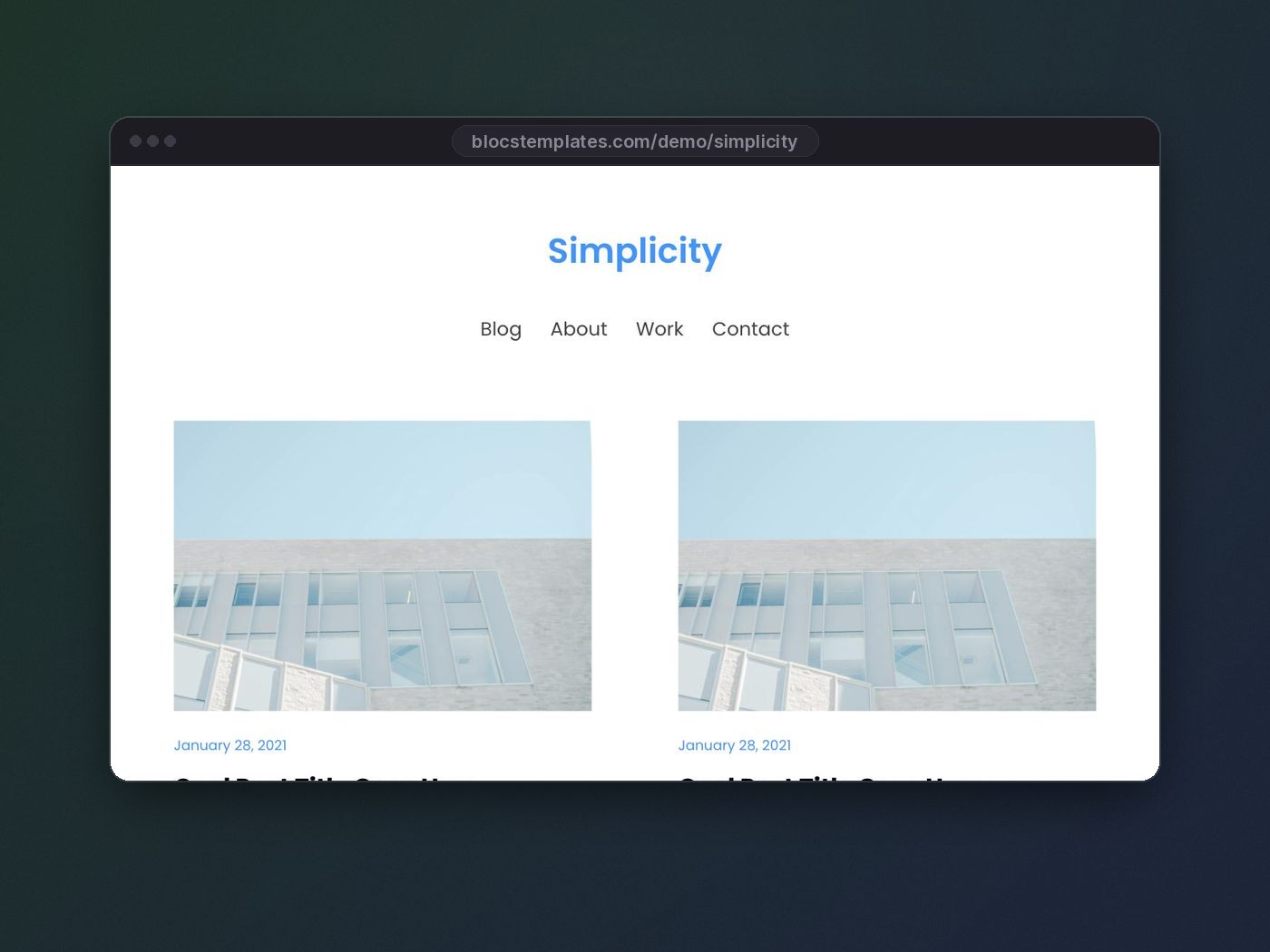
A template isn't a shortcut around design skill — it is design skill, packaged. You're starting from the finish line of someone else's hundred hours.
Step 4: Set up your global styles first
Before editing content, spend ten minutes in your project settings. This is the step beginners skip, and it's the one that makes everything after it faster.
- Global swatches. Blocs lets you define project-wide colors. Set your brand colors as swatches, and every element that uses them updates together when you tweak a shade later.
- Fonts. Pick your heading and body typefaces once, globally. Two typefaces is plenty; one great one is often better.
- Logo and favicon. Drop them into the project settings so they appear everywhere they should.
With globals in place, a template rebrand takes minutes: swap the swatches, swap the fonts, and the whole site follows.
Step 5: Build your pages
Now the fun part. Working section by section:
- Edit the hero first. Your headline should say what you do and who it's for in one sentence. Resist clever; choose clear.
- Replace images thoughtfully. Export photos at the size they'll display (roughly 2x for retina screens) and prefer WebP or compressed JPG. Oversized images are the number one cause of slow sites.
- Keep your own copy short. Headlines under ten words. Paragraphs under four lines. People scan first and read second.
- Delete what you don't need. A template ships with more sections than most sites use. Removing a section takes two clicks and the page instantly feels more focused.
- Check every breakpoint. Click through desktop, tablet, and mobile views as you go. Fixing responsive issues immediately is easy; fixing them all at the end is a slog.
Step 6: Handle the SEO basics
Blocs gives you everything you need for on-page SEO — you just have to fill it in:
- Page titles and meta descriptions for every page, written for humans. The title tells search engines what the page is; the description convinces a searcher to click.
- One H1 per page that contains the phrase people would actually search for.
- Alt text on images — describe what's in the picture plainly.
- Clean URLs. Name your pages with short, descriptive slugs:
/services/beats/page-2/.
Static sites like the ones Blocs exports have a built-in SEO advantage: they're fast, and speed is a ranking factor. Don't squander it with 4 MB hero images.
Step 7: Export and publish
When your site is ready, Blocs exports a folder of plain HTML, CSS, and JavaScript. That's one of its superpowers: there is no platform lock-in, no monthly ransom, and almost any hosting on earth can serve it.
Upload the exported files to your host, point your domain at it, and you're live. After launch, click every link, test your contact form, and run the site through a page-speed test to catch any oversized images you missed.
How long does this really take?
With content prepared and a template as your starting point, a focused beginner can go from nothing to a published five-page site in a weekend — and the second site goes twice as fast. The learning curve is front-loaded: once blocs, rows, and brics click, Blocs gets out of your way.
If you're ready to start, pick a template that matches your project — or get the Lifetime Membership and have all 70+ of them, plus every future release, for a single payment.